Organisation Settings
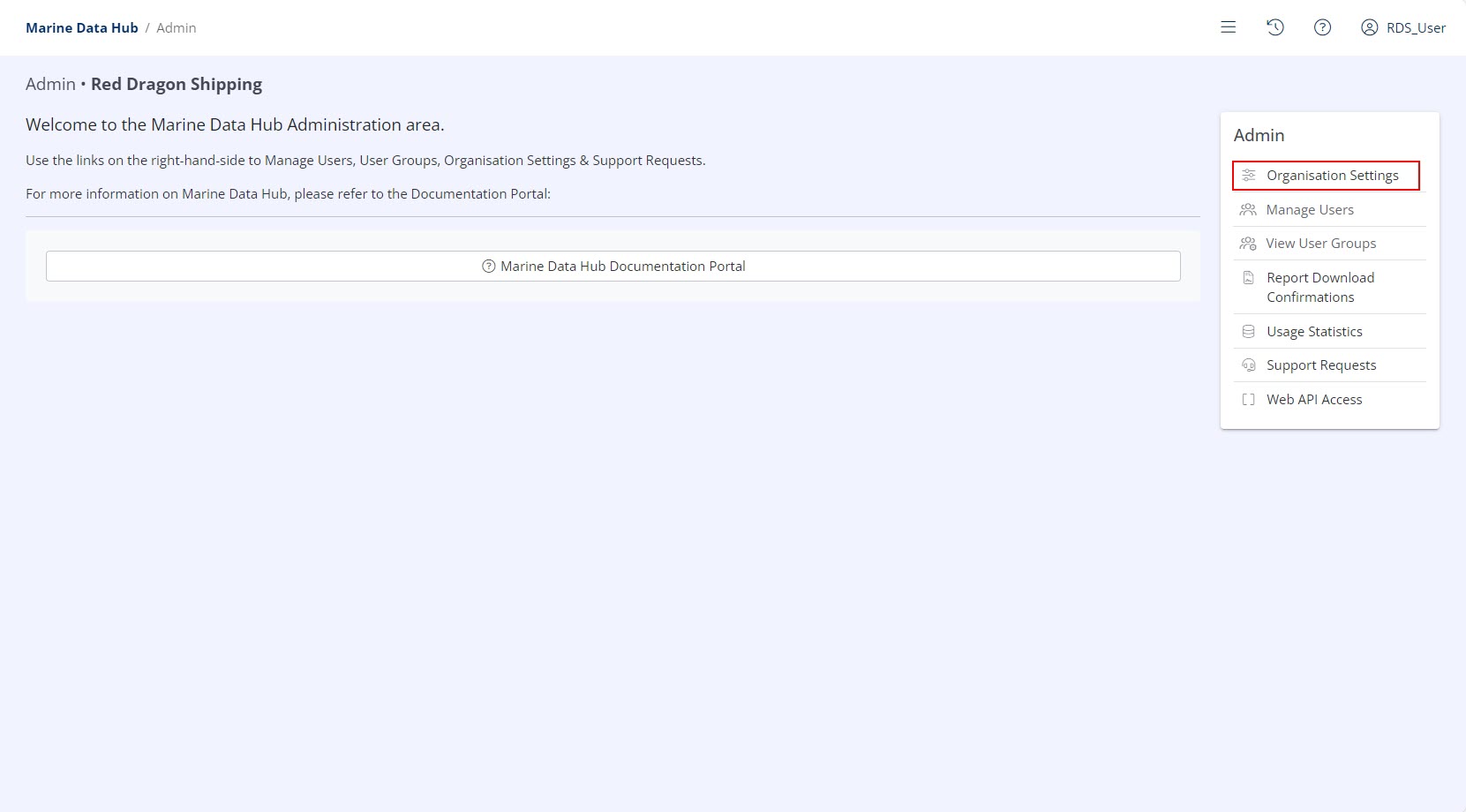
The Organisation Settings section is located in the Administration Menu. For more information on how to access the Administration Menu, refer to Navigate to the Admin Area.
Available Settings
- Send Notification E-mails?
- This option will enable/disable Notification E-mails at an organisation level.
- Global E-mail Notification List
- E-mail addresses entered into this field will receive notifications in the following circumstances:
- Send Notification E-mails? is set to "Yes".
- An event that triggers a notification occurs and is not tied to a specific User Group.
- E-mail addresses entered into this field will receive notifications in the following circumstances:
- Dialogue Email Participant Codes Enabled?
- For extra security, you can enable this option to send a secondary email to any Dialogue Participant who is not a registered Hub Member. The email includes a security code that they must enter to access the dialogue.
- Automatically schedule Dialogue Completion after N days activity?
- If specified, Active Dialogues (with no Active Reports) will be automatically marked as Complete if there is no activity for this number of days.
- A minimum of 14 days is required for this setting.
- If specified, Active Dialogues (with no Active Reports) will be automatically marked as Complete if there is no activity for this number of days.
- Automatically schedule Report Archiving after N days activity?
- If specified, Active Reports will be automatically marked as Archived if there is no activity for this number of days.
- A minimum of 14 days is required for this setting.
- If specified, Active Reports will be automatically marked as Archived if there is no activity for this number of days.
- Organisation-wide Alert Processing
- If enabled, when an Alert is processed it will be processed for all users in an Organisation.
- The user responsible for processing the Alert is always visible in the Alert Index.
- If enabled, when an Alert is processed it will be processed for all users in an Organisation.
- Enable RSS feed for all users across Organisation Name?
- If enabled, each user in the organisation may obtain a unique RSS URL + Token from the RSS Feed icon ( ), located on the Alerts module of the Dashboard.
- For full details see Alerts RSS Feed.
- If enabled, each user in the organisation may obtain a unique RSS URL + Token from the RSS Feed icon ( ), located on the Alerts module of the Dashboard.
- Regenerate RSS Token
This option will typically only be required if you believe an RSS Token has been shared inappropriately.
- This option will expire and regenerate all RSS tokens for all users in your organisation. If this option is used then users must obtain a new token from the Alerts module of the Dashboard.